How to Build a Form That Writes Straight to Google Sheets
Formwrapper Editorial Team · Published August 28, 2026 · Reviewed August 28, 2026
If you want form responses in a Google Sheet, you have two genuinely different options, and most tools only offer the second one.
Option one: the Sheet is the database. The form writes each submission straight into a spreadsheet in your Drive. There is one copy of the data and you own it.
Option two: the Sheet is a mirror. The form tool stores responses on its own servers, then syncs a copy into a Sheet. There are two copies, and the authoritative one is not yours.
This matters on the day you stop paying, the tool shuts down, or you want to pull the data somewhere else. Below is how to build the first kind — in Formwrapper, in about five minutes — and what to do when the connection breaks.
What you need first
- A Google account with Drive access.
- Roughly five minutes.
- No spreadsheet prepared in advance. Creating one yourself is the usual mistake — the tool should create it so the columns and the fields cannot drift apart.
Build the form
-
Sign in with Google. Formwrapper asks for permission to create and write to Sheets it creates itself. That is the
drive.filescope: it can see the spreadsheet it made for you and nothing else in your Drive. It cannot read your existing files. -
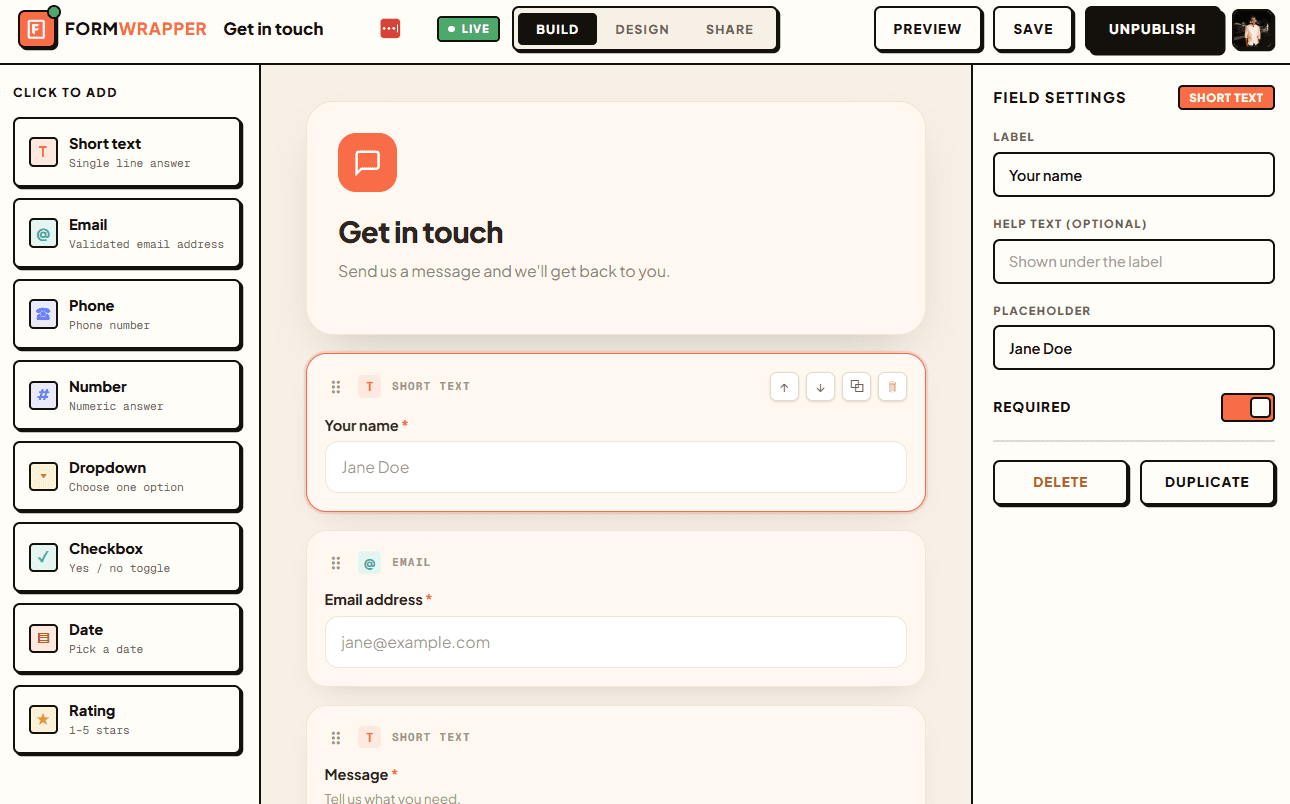
Add your fields. Drag in the questions you need and give each one a clear label. The labels become your column headers, so write them the way you want to read them later —
Email addressreads better as a column thanQ2.
- Publish the form. Formwrapper creates a Google Sheet in your Drive at this point, named after the form, with one column per field, plus a Submitted At timestamp.
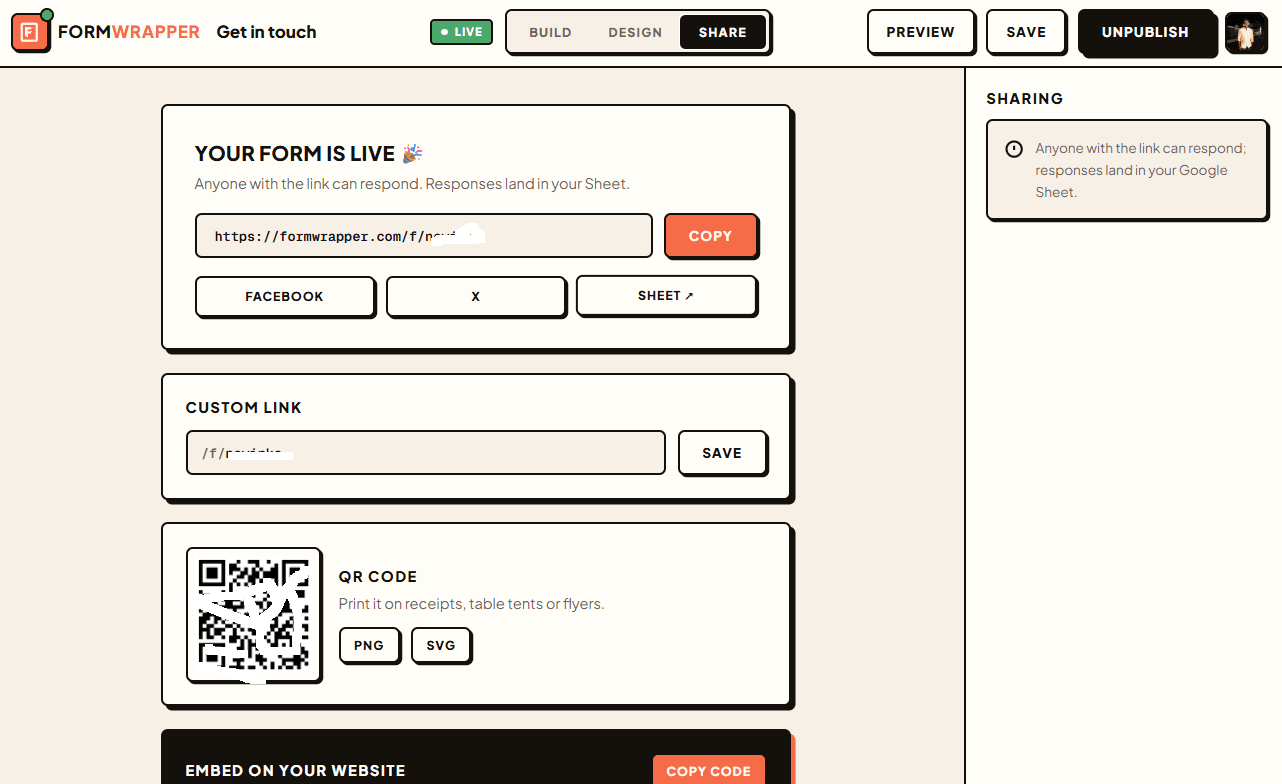
- Open the Sheet. Use the Sheet button on that screen, or find the file in your Drive. Either way it is a normal spreadsheet in your account. Not a preview, not an export — the file itself.
Check that it actually works
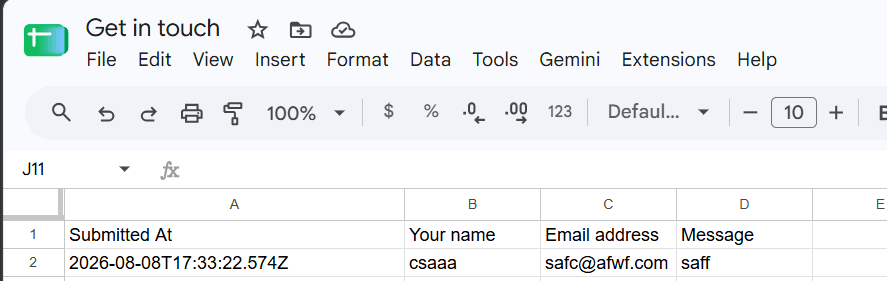
Do not skip this. Submit the form once yourself, then open the Sheet.
You should see a new row appear with your answers in the matching columns, plus a timestamp. If the row is there, the write path works end to end and you can share the form.
Name your columns before you share the form
Responses are much easier to work with later if you decide the shape now.
| Field label | Why it works as a column |
|---|---|
| Email address | Sorts and dedupes cleanly; obvious in a formula |
| Company size | A single dimension you can group by |
| What are you trying to build? | Long free text — keep it as the last column so it does not push everything else off screen |
A useful habit: put short, structured fields first and long free-text fields last. Spreadsheets are much easier to scan that way, and nothing about it is Formwrapper-specific.
When responses stop arriving
This is the failure almost nobody writes about, and it has one dominant cause.
Symptom: people filling in your form see "This form is temporarily unavailable. Please try again later." instead of the success screen, and no new rows appear in the Sheet. On your side, your dashboard shows a prompt to reconnect your Google account.
Cause: the Google connection expired. Access tokens are short-lived and get renewed with a refresh token, and a refresh token can stop working — most often because the app was removed in your Google account's security settings, or because the account went unused long enough for Google to expire the token.
Fix: open your dashboard and use Reconnect. Signing in again re-grants the permission and re-issues the refresh token; responses resume on the next submission. The Sheet is untouched throughout, because it is your file — the connection breaking never puts your existing data at risk.
What you lose: submissions attempted while the connection was broken are not written retroactively. The people who hit the error saw it and can submit again once you reconnect, but they will not come back on their own — so reconnect promptly, and consider telling anyone you had actively asked to fill the form.
Where a Google Sheet stops being the right answer
An honest limit, because this is a real one.
A Sheet is excellent up to the low tens of thousands of rows, for data a human reads, filters, charts, or hands to someone else. It is the wrong tool if you need concurrent writes at high volume, relational integrity across several tables, or row-level access control for different people. At that point you want a real database, and a form builder writing into it through an API.
Most forms are nowhere near that line. If yours is, be honest about it early — migrating later is more work than starting in the right place.
If Google Forms already does this for you
It might. Google Forms writes to Sheets, it is free, and if you are happy with how it looks and what it can ask, there is no reason to switch. The usual reasons people move are the ones Forms does not address: control over the form's appearance, embedding it in your own site so it does not look like a Google product, and keeping the design of the form separate from the account that owns the data.
Choose on the job you actually have, not on the feature list.
Try it
Formwrapper's free plan gives you unlimited forms and unlimited responses, and the Sheet is yours from the moment it is created.